These are simple and detailed notes for Class 10 AI Unit 7: Advance Python. This is a practical unit. It is assessed in the practical exam, so you must type and run every program yourself. Your practical file needs at least 15 programs. This page gives you all 8 programs from the CBSE syllabus, and 7 extra programs to complete your file. Every program has been run and tested, and the real output is shown.
Good to know: You learned the basics of Python (variables, operators, if, for, while, lists) in Class 9. Read those notes first if you need a refresher: Class 9 Unit 5: Introduction to Python. Here we recap them briefly, and focus on the new things: Jupyter Notebook, virtual environments, packages, and the libraries NumPy, Pandas, Matplotlib, and OpenCV.
Advance Python Class 10 AI Notes (Unit 7)
What Is Repeated and What Is New?
| Topic | Status | Where to Read |
|---|---|---|
| Variables, data types, operators, if, for, while, lists | Revision | Class 9 Unit 5, short recap here |
| Mean, median, mode; line and scatter charts | Revision (now with code) | Class 10 Unit 4 |
| Pixels, channels, image shape | Revision (now with code) | Class 10 Unit 3 and Unit 5 |
| Jupyter Notebook | New | This page |
| Virtual environments and installing packages | New | This page |
| Built-in functions and libraries | New | This page |
| NumPy, Pandas, Matplotlib, OpenCV | New | This page |
| 15 practical programs | New | This page |
Quick Python Recap
Variables and Data Types
A variable stores a value. Python finds the data type by itself.
| Data Type | Example | Meaning |
|---|---|---|
| int | x = 25 | Whole number |
| float | price = 99.5 | Number with a decimal point |
| str | name = “Riya” | Text |
| bool | passed = True | True or False |
| list | marks = [78, 85, 62] | A group of values in order |
Operators
| Type | Operators | Example |
|---|---|---|
| Arithmetic | + – * / // % ** | 7 // 2 gives 3, 7 % 2 gives 1, 2 ** 3 gives 8 |
| Comparison | == != > < >= <= | 5 > 3 gives True |
| Logical | and, or, not | (5 > 3) and (2 > 4) gives False |
Control Structures
- if / elif / else: Choose a path based on a condition.
- for loop: Repeat for each item in a group, such as
for i in range(1, 6):. - while loop: Repeat as long as a condition is true.
Remember: Python uses indentation (spaces at the start of a line) to show which lines belong inside an if or a loop.
Jupyter Notebook
Jupyter Notebook is a free tool where you write and run Python code in your web browser. It is very popular in AI and data science. You write code in small boxes called cells. When you run a cell, the output appears right below it. Charts and images also appear inside the notebook.
How to Start Jupyter Notebook
- Install the Anaconda distribution. It comes with Python, Jupyter, and many libraries. (The CBSE equipment list also names Anaconda Navigator.)
- Open Anaconda Navigator and click Launch under Jupyter Notebook. Or type
jupyter notebookin the command prompt. - A page opens in your browser. Click New and choose Python 3.
- Type your code in a cell and press Shift + Enter to run it.
- Save with Ctrl + S. A notebook file ends with .ipynb.
Types of Cells
- Code cell: For Python code. It runs and shows output.
- Markdown cell: For notes, headings, and explanations. It does not run as code.
Tip: If a program does not work as expected, use Kernel > Restart and run the cells again from the top.
Virtual Environments
A virtual environment is a separate, private space on your computer for one Python project. It has its own set of packages. This keeps projects from disturbing each other.
Why do we need it? Suppose Project A needs one version of a library, and Project B needs a different version. If both share the same space, one will break. With a virtual environment for each project, both work fine.
Create a Virtual Environment With venv
# 1. Create it (the name "myenv" can be anything)
python -m venv myenv

# 2. Activate it on Windows
myenv\Scripts\activate

# 2. Activate it on Mac or Linux
source myenv/bin/activate

# 3. When finished
deactivate
When the environment is active, you will see its name in brackets at the start of the command line, like (myenv).
Create One With Conda (Anaconda)
conda create -n aienv python=3.11
conda activate aienv
Use a recent Python version that your teacher recommends.
Installing Python Packages
A package (or library) is a ready-made set of code that someone else wrote. We install it once, and then use it in our programs. The tool for installing packages is pip.
pip install numpy
pip install pandas
pip install matplotlib
pip install opencv-python

# See all installed packages
pip list
You can also install in one line: pip install numpy pandas matplotlib opencv-python.
Inside a Jupyter cell, put an exclamation mark before the command: !pip install numpy.
Note: If you installed Anaconda, many of these are already installed. You need an internet connection to install new ones.
Built-in Functions and Libraries
Built-in Functions
These are ready to use. You do not need to import anything.
| Function | What It Does | Example |
|---|---|---|
| print() | Shows output | print(“Hello”) |
| input() | Takes input as text | name = input(“Name: “) |
| int(), float(), str() | Change the data type | int(“5”) gives 5 |
| len() | Number of items | len([4, 5, 6]) gives 3 |
| type() | Shows the data type | type(3.5) gives float |
| sum(), min(), max() | Total, smallest, largest | max([4, 9, 2]) gives 9 |
| sorted() | Sorts a list | sorted([3, 1, 2]) gives [1, 2, 3] |
| range() | A series of numbers | range(1, 4) gives 1, 2, 3 |
| round(), abs() | Round off, positive value | round(3.67, 1) gives 3.7 |
Libraries
A library adds extra power. We bring it into our program with import. We often give it a short nickname with as.
import numpy as np
import pandas as pd
import matplotlib.pyplot as plt
import cv2| Library | Used For | Nickname |
|---|---|---|
| NumPy | Fast work with numbers and arrays | np |
| Pandas | Working with tables and CSV files | pd |
| Matplotlib | Drawing charts and showing images | plt |
| OpenCV | Reading and processing images (Computer Vision) | cv2 |
Before You Start the Programs
- Run every program in Jupyter Notebook.
- Put the CSV file and the image file in the same folder as your notebook, so Python can find them by name.
- For charts,
plt.show()displays the chart. In Jupyter, charts usually appear even without it, but write it anyway. - Type the quote marks as plain straight quotes ( ” ), not curly quotes.
- Output shown here is from a real run. Your output may differ slightly because of the Pandas version.
Practical Programs From the Syllabus
Program 1: Add the Elements of Two Lists
Aim: Add the numbers of two lists, position by position.
import numpy as np

a = [1, 2, 3, 4]
b = [10, 20, 30, 40]

print("a + b (joins lists):", a + b)

result = [x + y for x, y in zip(a, b)]
print("Using zip:", result)

print("Using NumPy:", np.array(a) + np.array(b))
Output:
a + b (joins lists): [1, 2, 3, 4, 10, 20, 30, 40]
Using zip: [11, 22, 33, 44]
Using NumPy: [11 22 33 44]
Explanation: With normal lists, the + sign only joins them. To add item by item, use zip() or convert the lists to NumPy arrays. With arrays, + adds each pair of numbers.
Program 2: Mean, Median and Mode Using NumPy
Aim: Find the mean, median, and mode of a set of numbers.
import numpy as np

data = np.array([4, 7, 7, 9, 10, 12, 7, 15])

print("Mean   :", np.mean(data))
print("Median :", np.median(data))

values, counts = np.unique(data, return_counts=True)
print("Mode   :", values[np.argmax(counts)])
Output:
Mean   : 8.875
Median : 8.0
Mode   : 7
Explanation: np.mean() gives the average. np.median() gives the middle value. NumPy has no direct mode function, so we use np.unique() with return_counts=True. It lists each value and how often it appears. np.argmax(counts) finds the position of the highest count, and that value is the mode. (You can also use statistics.mode() from Python’s statistics module.)
Check by hand: Sum = 71, and 71 ÷ 8 = 8.875. Sorted data: 4, 7, 7, 7, 9, 10, 12, 15. The middle two values are 7 and 9, so the median is 8. The number 7 appears three times, so the mode is 7.
Program 3: Line Chart From (2, 5) to (9, 10)
Aim: Draw a line chart joining the points (2, 5) and (9, 10).
import matplotlib.pyplot as plt

x = [2, 9]
y = [5, 10]

plt.plot(x, y, marker="o", color="green")
plt.title("Line chart from (2,5) to (9,10)")
plt.xlabel("x values")
plt.ylabel("y values")
plt.grid(True)
plt.show()
Output:
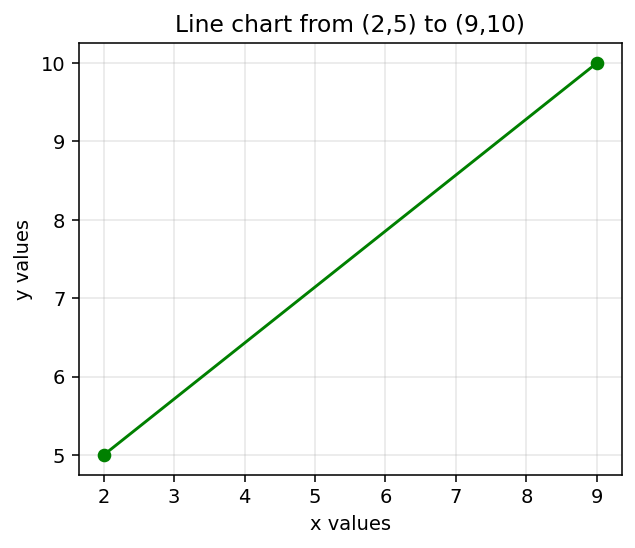
Explanation: The first list holds all x values, and the second holds all y values. plt.plot() joins the points with a line. marker="o" puts a dot on each point.
Program 4: Scatter Chart for Given Points
Aim: Show the points (2,5), (9,10), (8,3), (5,7), (6,18) as a scatter chart.
import matplotlib.pyplot as plt

x = [2, 9, 8, 5, 6]
y = [5, 10, 3, 7, 18]

plt.scatter(x, y, color="red")
plt.title("Scatter chart")
plt.xlabel("x values")
plt.ylabel("y values")
plt.grid(True)
plt.show()
Output:
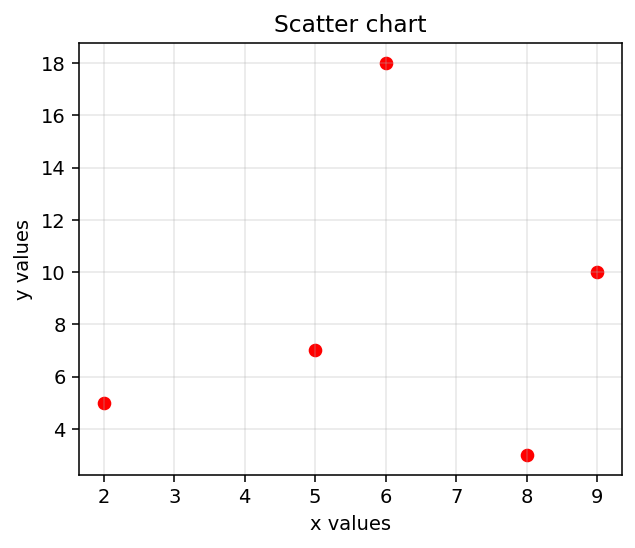
Explanation: Take the x of every point into one list, and the y of every point into another list, in the same order. plt.scatter() draws only dots, with no line between them.
Line chart vs scatter chart: A line chart joins points, and shows change over time. A scatter chart shows only the points, and shows the relationship between two things.
Program 5: Read a CSV File and Display 10 Rows
Aim: Read a CSV file saved on your computer and show its first 10 rows.
First, make a file named students.csv in the same folder as your notebook. You can use any CSV file you like. For this example, we used this data:
Roll,Name,Age,Marks,City
1,Aman,15,78,Delhi
2,Bhavna,14,85,Mumbai
3,Chirag,15,62,Jaipur
4,Divya,14,91,Pune
5,Esha,15,70,Delhi
6,Farhan,16,55,Lucknow
7,Gauri,14,88,Mumbai
8,Harsh,15,67,Jaipur
9,Isha,16,74,Pune
10,Jay,15,81,Delhi
11,Kavya,14,93,Lucknow
12,Lakshay,16,59,Mumbai
import pandas as pd
df = pd.read_csv("students.csv")
print(df.head(10))Output:
   Roll    Name  Age  Marks     City
0     1    Aman   15     78    Delhi
1     2  Bhavna   14     85   Mumbai
2     3  Chirag   15     62   Jaipur
3     4   Divya   14     91     Pune
4     5    Esha   15     70    Delhi
5     6  Farhan   16     55  Lucknow
6     7   Gauri   14     88   Mumbai
7     8   Harsh   15     67   Jaipur
8     9    Isha   16     74     Pune
9    10     Jay   15     81    Delhi
Explanation: pd.read_csv() reads the file into a table called a DataFrame. df.head(10) shows the first 10 rows. Without a number, head() shows 5 rows. The numbers at the left (0 to 9) are the row index.
Program 6: Read a CSV File and Display Its Information
Aim: Show details of the CSV data, such as columns, data types, and missing values.
import pandas as pd

df = pd.read_csv("students.csv")
df.info()
print("Shape:", df.shape)
Output:
<class 'pandas.DataFrame'>
RangeIndex: 12 entries, 0 to 11
Data columns (total 5 columns):
 #   Column  Non-Null Count  Dtype
---  ------  --------------  -----
 0   Roll    12 non-null     int64
 1   Name    12 non-null     str
 2   Age     12 non-null     int64
 3   Marks   12 non-null     int64
 4   City    12 non-null     str
dtypes: int64(3), str(2)
memory usage: 612.0 bytes
Shape: (12, 5)
Note: On older versions of Pandas, the text columns show as object instead of str, and the first line says pandas.core.frame.DataFrame. Both are fine.
Explanation: df.info() shows the number of rows, the name of every column, how many values are not empty (non-null), and the data type of each column. df.shape gives (rows, columns), here 12 rows and 5 columns. You can also try df.describe() to see mean, minimum, and maximum of number columns.
Program 7: Read an Image and Display It
Aim: Read an image file and show it using Python.
Keep an image file, such as sample.jpg, in the same folder. You can use any photo of your own.
import cv2
import matplotlib.pyplot as plt

img = cv2.imread("sample.jpg")
img_rgb = cv2.cvtColor(img, cv2.COLOR_BGR2RGB)

plt.imshow(img_rgb)
plt.title("Image shown with Python")
plt.axis("off")
plt.show()
Output:
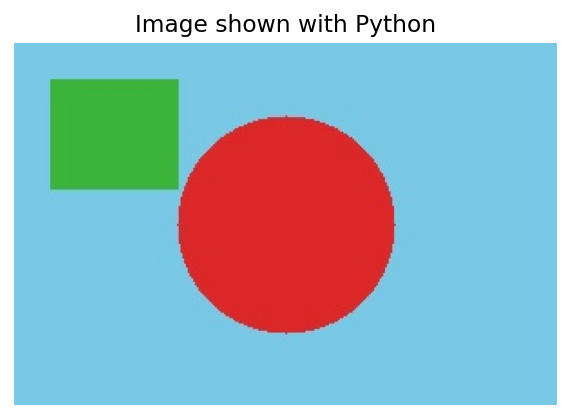
Explanation: cv2.imread() reads the image into a NumPy array of numbers (the pixel values, as you studied in Unit 5). OpenCV stores colours in the order Blue, Green, Red (BGR). But Matplotlib expects Red, Green, Blue (RGB). So cv2.cvtColor() changes the order. If you skip this step, the colours look wrong (red looks blue).
Program 8: Read an Image and Find Its Shape
Aim: Read an image and print its shape.
import cv2

img = cv2.imread("sample.jpg")
print("Shape of image:", img.shape)

h, w, c = img.shape
print("Height =", h, ", Width =", w, ", Channels =", c)
Output:
Shape of image: (200, 300, 3)
Height = 200 , Width = 300 , Channels = 3
Explanation: The shape has three numbers: (height, width, channels). Here the image is 200 pixels high and 300 pixels wide. The 3 means it is a colour (RGB) image with three channels. A grayscale image has only (height, width), with no third number. Your numbers will be different for your own image.
Seven Extra Programs to Complete Your File
CBSE asks for a practical file with at least 15 programs. The syllabus lists 8, so here are 7 more simple ones. Your teacher may give a different list, so follow that when needed.
Program 9: Check Whether a Number Is Even or Odd
num = int(input("Enter a number: "))
if num % 2 == 0:
    print(num, "is even")
else:
    print(num, "is odd")
Sample output:
Enter a number: 7
7 is odd
Program 10: Factorial of a Number
n = int(input("Enter a number: "))
fact = 1
for i in range(1, n + 1):
    fact = fact * i
print("Factorial of", n, "is", fact)
Sample output:
Enter a number: 5
Factorial of 5 is 120
Program 11: Total and Average of a List
marks = [78, 85, 62, 91, 70]
total = sum(marks)
average = total / len(marks)
print("Total   =", total)
print("Average =", average)
Output:
Total   = 386
Average = 77.2
Program 12: Multiplication Table
n = int(input("Enter a number: "))
for i in range(1, 11):
    print(n, "x", i, "=", n * i)
Sample output (for 7):
Enter a number: 7
7 x 1 = 7
7 x 2 = 14
7 x 3 = 21
7 x 4 = 28
7 x 5 = 35
7 x 6 = 42
7 x 7 = 49
7 x 8 = 56
7 x 9 = 63
7 x 10 = 70
Program 13: Largest of Three Numbers
a = int(input("Enter first number: "))
b = int(input("Enter second number: "))
c = int(input("Enter third number: "))
if a >= b and a >= c:
    print("Largest is", a)
elif b >= a and b >= c:
    print("Largest is", b)
else:
    print("Largest is", c)
Sample output:
Enter first number: 12
Enter second number: 45
Enter third number: 30
Largest is 45
Program 14: Bar Chart of Marks
import matplotlib.pyplot as plt

subjects = ["Maths", "Science", "English", "Hindi", "AI"]
marks = [85, 78, 72, 80, 92]

plt.bar(subjects, marks, color="teal")
plt.title("Marks in Different Subjects")
plt.xlabel("Subjects")
plt.ylabel("Marks")
plt.show()
Output: A bar chart with five bars. The tallest bar is for AI (92).
Program 15: Simple Statistics From a CSV Using Pandas
import pandas as pd

df = pd.read_csv("students.csv")
print("Mean marks   :", df["Marks"].mean())
print("Highest marks:", df["Marks"].max())
print("Lowest marks :", df["Marks"].min())
print("Students from Delhi:", len(df[df["City"] == "Delhi"]))
Output:
Mean marks   : 75.25
Highest marks: 93
Lowest marks : 55
Students from Delhi: 3
Explanation: df["Marks"] picks one column. .mean(), .max(), and .min() work on that column. df[df["City"] == "Delhi"] keeps only the rows where the city is Delhi, and len() counts them.
Common Errors and How to Fix Them
| Error | Why It Happens | Fix |
|---|---|---|
| ModuleNotFoundError | The library is not installed. | Install it, for example pip install opencv-python. Note that the import name is cv2. |
| FileNotFoundError | Python cannot find the CSV or image file. | Keep the file in the same folder as the notebook. Check the file name and the extension. |
| NameError | A variable or library name was used before it was defined, or a library was not imported. | Run the cells in order. Check the spelling. Add the import line. |
| IndentationError | The spaces at the start of a line are wrong. | Indent the lines inside if, for, and while by the same number of spaces. |
| SyntaxError | A bracket, quote, or colon is missing. | Check the line that Python points to. |
| Wrong image colours | OpenCV uses BGR and Matplotlib uses RGB. | Use cv2.cvtColor(img, cv2.COLOR_BGR2RGB). |
Tip for imread: If the file is not found, cv2.imread() does not show an error. It returns None, and the error appears only on the next line. So if you see an error about “NoneType”, check the file name first.
How to Prepare Your Practical File
- Write the aim, the program, and the output for each of the 15 programs.
- Take a clear screenshot of the output of each program.
- Number the programs and add an index page.
- Be ready to explain every line of every program in the viva.
- Practise typing the programs without looking.
Likely Viva Questions
- What is Jupyter Notebook? A browser tool to write and run Python code in cells.
- What is a virtual environment? Why do we use it? A private space for a project with its own packages, so projects do not disturb each other.
- Which command installs a package?
pip install package_name. - What is NumPy used for? Fast work with numbers and arrays.
- What is a DataFrame? A table of rows and columns in Pandas.
- Which function reads a CSV file?
pd.read_csv(). - What does df.head() do? Shows the first 5 rows by default.
- Which library reads images? OpenCV (cv2).
- What does img.shape give? Height, width, and number of channels.
- Why do we convert BGR to RGB? OpenCV reads colours as BGR, but Matplotlib shows them as RGB.
Quick Revision Points
- Jupyter Notebook runs Python in cells. Files end in .ipynb.
- A virtual environment is a separate space for one project. Create it with
python -m venv name. - Install packages with
pip install. - NumPy (np) for arrays. Pandas (pd) for tables. Matplotlib (plt) for charts. OpenCV (cv2) for images.
- Normal lists join with +. NumPy arrays add item by item.
- NumPy has np.mean() and np.median(), but no direct mode function.
plt.plot()makes a line chart.plt.scatter()makes a scatter chart.pd.read_csv(),df.head(),df.info(),df.shape.cv2.imread()reads an image.img.shapegives (height, width, channels).
Multiple Choice Questions
Q1. A Jupyter Notebook file has the extension:
a) .py b) .ipynb c) .txt d) .csv
Answer: b) .ipynb
Q2. Which key combination runs a cell in Jupyter Notebook?
a) Ctrl + S b) Shift + Enter c) Ctrl + Z d) Alt + F4
Answer: b) Shift + Enter
Q3. A virtual environment is used to:
a) Speed up the internet b) Keep the packages of one project separate from others c) Delete files d) Draw charts
Answer: b) Keep the packages of one project separate from others
Q4. Which command creates a virtual environment named myenv?
a) pip install myenv b) python -m venv myenv c) create myenv d) import myenv
Answer: b) python -m venv myenv
Q5. Which tool is used to install Python packages?
a) pip b) print c) range d) len
Answer: a) pip
Q6. Which library is used for fast work with arrays of numbers?
a) Pandas b) NumPy c) OpenCV d) Matplotlib
Answer: b) NumPy
Q7. Which library is used to work with tables and CSV files?
a) NumPy b) Pandas c) OpenCV d) Matplotlib
Answer: b) Pandas
Q8. Which library is used to draw charts?
a) Matplotlib b) Pandas c) OpenCV d) NumPy
Answer: a) Matplotlib
Q9. Which library is used to read and process images?
a) Pandas b) NumPy c) OpenCV d) Statistics
Answer: c) OpenCV
Q10. In import numpy as np, what is “np”?
a) A function b) A short nickname (alias) for NumPy c) A file name d) An error
Answer: b) A short nickname (alias) for NumPy
Q11. What is the output of [1, 2] + [3, 4]?
a) [4, 6] b) [1, 2, 3, 4] c) 10 d) Error
Answer: b) [1, 2, 3, 4]
Q12. What is the output of np.array([1, 2]) + np.array([3, 4])?
a) [1 2 3 4] b) [4 6] c) 10 d) Error
Answer: b) [4 6]
Q13. What is the output of np.median([1, 3, 2])?
a) 1.0 b) 2.0 c) 3.0 d) 6.0
Answer: b) 2.0
Q14. Which of these has no direct function in NumPy?
a) Mean b) Median c) Mode d) Sum
Answer: c) Mode
Q15. Which function draws a scatter chart?
a) plt.plot() b) plt.scatter() c) plt.bar() d) plt.show()
Answer: b) plt.scatter()
Q16. Which function reads a CSV file in Pandas?
a) pd.read_csv() b) pd.open_csv() c) pd.load() d) pd.csv()
Answer: a) pd.read_csv()
Q17. How many rows does df.head() show by default?
a) 3 b) 5 c) 10 d) All
Answer: b) 5
Q18. Which Pandas function shows the column names, data types, and non-null counts?
a) df.head() b) df.info() c) df.shape d) df.show()
Answer: b) df.info()
Q19. A DataFrame has 12 rows and 5 columns. What does df.shape give?
a) (5, 12) b) (12, 5) c) 17 d) 60
Answer: b) (12, 5)
Q20. A colour image is 200 pixels high and 300 pixels wide. Its img.shape is:
a) (300, 200, 3) b) (200, 300, 3) c) (200, 300) d) (3, 200, 300)
Answer: b) (200, 300, 3)
Q21. OpenCV reads colours in which order?
a) RGB b) BGR c) GRB d) CMYK
Answer: b) BGR
Q22. What is the output of 7 // 2?
a) 3.5 b) 3 c) 4 d) 1
Answer: b) 3
Q23. What is the output of 7 % 2?
a) 3 b) 3.5 c) 1 d) 0
Answer: c) 1
Q24. Which symbol is used to write a comment in Python?
a) // b) # c) /* d) —
Answer: b) #
Assertion and Reason Questions
Choices: (a) Both A and R are true and R explains A. (b) Both A and R are true but R does not explain A. (c) A is true but R is false. (d) A is false but R is true.
Q25. Assertion (A): We use a separate virtual environment for each project.
Reason (R): Packages installed in one environment do not disturb the other environments.
Answer: (a) Both are true, and R explains A.
Q26. Assertion (A): NumPy has a direct function called mode().
Reason (R): We can find the mode using np.unique() with return_counts=True.
Answer: (d) A is false, because NumPy has no direct mode function. R is true.
Case-Based Question
A student has a file named marks.csv with columns Name, Class, and Marks. She wants to show the first 10 rows, find out how many rows and columns there are, and then draw a bar chart of the marks. She keeps the file in a different folder from her notebook, and Python shows a FileNotFoundError.
- Which library should she use to read the file? Answer: Pandas.
- Which functions will show the first 10 rows, and the number of rows and columns? Answer:
df.head(10)anddf.shape. - Which library and function can draw the bar chart? Answer: Matplotlib, with
plt.bar(). - Why did the error occur, and how can she fix it? Answer: Python could not find the file in the current folder. She should move marks.csv to the notebook’s folder, or give the full path of the file.
Short Answer Questions
- What is Jupyter Notebook? What are its two main types of cells?
- What is a virtual environment? Why is it useful?
- Write the commands to create and activate a virtual environment on Windows.
- What is a package? How do we install one?
- Name four Python libraries used in AI, with one use of each.
- What is the difference between
[1, 2] + [3, 4]andnp.array([1, 2]) + np.array([3, 4])? - How do we find the mode of data using NumPy?
- Differentiate between a line chart and a scatter chart.
- What are
df.head(),df.info(), anddf.shapeused for? - What does
img.shapetell us? What does the number 3 stand for? - Why do we use
cv2.cvtColor()before showing an image with Matplotlib? - Predict the output:
x = 5; y = 2; print(x // y, x % y, x ** y). (Answer: 2 1 25.) - Predict the output:
for i in range(1, 4): print(i * i). (Answer: 1, 4, 9, each on a new line.)
Long Answer Questions
- Explain how to start Jupyter Notebook, and how to write and run a program in it.
- Explain virtual environments and how to install packages. Why are they important for AI projects?
- Write a program to find the mean, median, and mode of a list using NumPy. Explain each line.
- Write a program to read a CSV file and show its first 10 rows and its information. Explain the functions used.
- Write a program to read an image, display it, and print its shape. Explain why the colour order has to be changed.
Keep Learning
You have finished all 7 units of Class 10 AI. Revise the units with the most marks: Unit 3: Evaluating Models and Unit 5: Computer Vision. For all units, visit the Class 10 AI Notes page.